




Most people are familiar with Adobe as a software vendor as they, at minimum, likely have Adobe Reader installed on their PCs to be able to open and view PDFs. Some may use other Adobe tools such as Acrobat for the creation or editing of PDFs. However, you may not be aware that the Adobe tools can be integrated directly into Microsoft 365, streamlining tasks for many users.
How does this integration help users?
Adobe plugs right into your menu bar and leverages the familiarity of working with the toolbars in Office and Outlook. You may not be as familiar with how Adobe works within the Microsoft 365 cloud environment, within SharePoint, OneDrive, and other Microsoft products.
The intention behind the integration is to minimize the jumping between applications to get work done and leverage one interface and one location as much as possible. The integration between M365 and Adobe allows you to work where you want. You can convert Office365 files to PDFs in Office 365 or you can work with Office files in Adobe.
As a company, we spend a lot of time educating users and IT teams on file sharing and document sharing. Many aren’t aware of how the file-sharing habits they have today compromise corporate security and document integrity. Users shouldn’t be sending file attachments around their organizations but should be locating them centrally for multiple users to edit to preserve versioning and keep documents secure.
If documents stay in one place, for example on OneDrive, Teams, or SharePoint, the location of the document and its link can be shared versus the document itself.
What is the difference between sharing documents in Teams and SharePoint?
With Teams, everyone within a team has edit/modify/delete access to files and can work on documents collaboratively. This is designed specifically for small teams/departmental collaboration.
SharePoint is a business platform where you store documents and can provide restricted access to documents, such as view-only access with the majority of your organization.
For example, let’s take a look at an HR use case.
HR might be working within Microsoft Office to collaborate on documents within their Teams environment. They may be working on updating policies and iterating on the documents multiple times until they are satisfied with the result. Once complete they want to publish that new revision on the intranet for all employees to read. Using Word, they can convert the file to a PDF and move it to a different location on a SharePoint site where they can expose it to users on their intranet.
Once in SharePoint they can provide edit/create/modify access to their team members and the remainder of the organization can be set to ‘View Only’. The intention with the PDF format is that users are not modifying the document and the document remains compliant with corporate or organization-wide policy.
As with Office365 all files, including PDFs, can be encrypted and information rights management applied. Even if files are forwarded or downloaded, unauthorized users are still not able to access the files if they have not been invited to a Library or were not provided access rights.
What about Microsoft PowerApps and Microsoft Flow?
Microsoft Flow and Power Automate is the workflow engine that drives business process automation within Microsoft 365. The tools are used to build dynamic workflows to do different things with documents, such as SharePoint lists or forms. PowerApps provides a platform to easily build forms – simple forms for vacation requests, or travel or expense reimbursement, or the types of things you do that may require approvals or require the input of information. All can be built in PowerApps, and forms can be exposed to both internal and external users and potentially include automated digital signatures through products like Adobe sign.
This is yet another example of how you can automate current processes that you do on a daily basis, including:
- Creating documents
- Routing documents for approval
- Printing documents
- Requiring auto signatures
- Combining multiple pages into one document
- Finalizing documents by converting them to PDFs
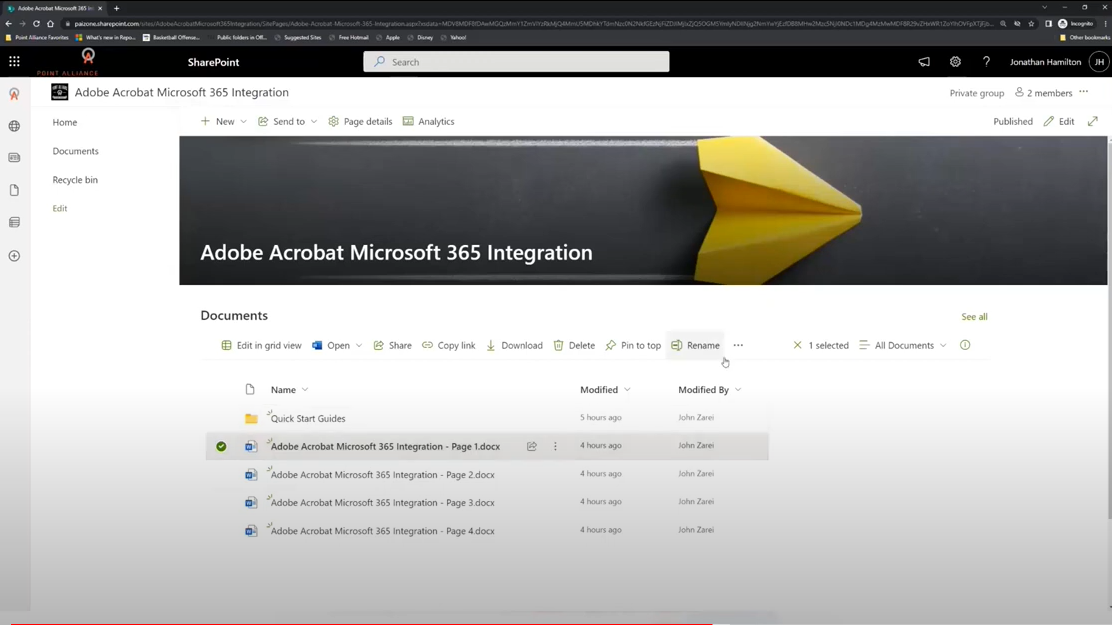
Adobe Acrobat and Microsoft 365 Integration Explainer
Watch our full demo and learn how the integration of M365 and Adobe tools benefits business users today.
Note that for you to take full advantage of this integration you will need a full Adobe license, not just the PDF reader.