




Communicating is the one thing we all do everyday at work. Whether it’s following up with a customer, reaching out to a co-worker, or responding to a client, we all need e-mail to communicate.
Microsoft Outlook 365 is more than just an e-mail communication platform. Outlook streamlines contacts, calendars, tasks, and much more. If you think you know everything there is to know about Microsoft Outlook, think again.
With the tips in this newsletter and our webinar, you’ll be able to optimize e-mail communication, collaboration, and scheduling.
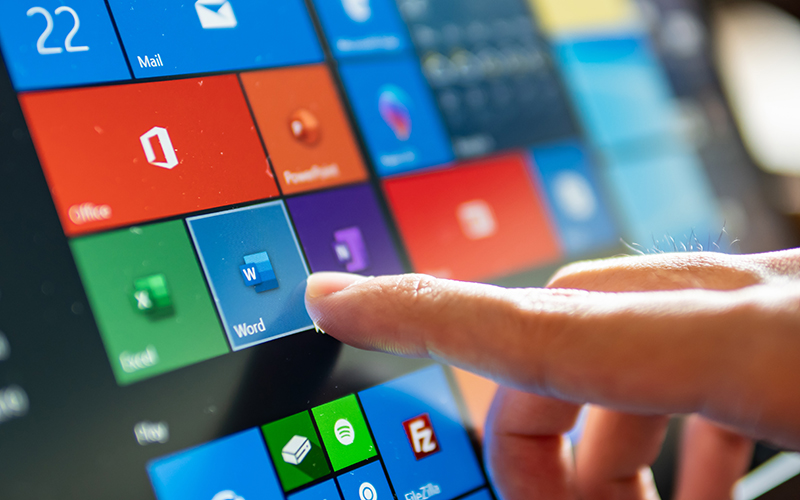
Microsoft 365: An Overview
No one wants collaboration tools that are difficult to use or understand.
Outlook 365 stands the test of time because year after year, it provides simple, productive, and reliable tools for communicating.
Microsoft 365 includes all the Office applications (PowerPoint, Outlook, etc.) most of us are familiar with. If you’re not so familiar with Microsoft 365, here’s a quick overview.
With Word, Excel, Outlook, and PowerPoint, users can collaborate, create, and communicate from any device or location. Microsoft 365 also includes the option to create forms, workflows, and custom mobile apps that automate business processes.
User authentication, data protection, and cyberthreat detection all work together to provide a secure platform. Additionally, users can integrate any third party apps their organization already uses.
Read on to discover new ways to optimize Outlook for communication.

Schedule E-mails Ahead of Time
Follow up emails can be an awkward dance. The timing has to be soon enough to stay relevant but not so soon that you overwhelm your client, customer, or colleague.
Ever worry that you’ll forget to send that follow up at the right time? Email marketing and CRM services have automated flows so follow ups are never forgotten.
But if you’re following up on something that falls out of the automation parameters, Outlook has a great feature to help you out: e-mail scheduling. This feature allows you to schedule pre-written e-mails for a specific date and time.
How: in the pop out Outlook window for your email, click ‘Delay Delivery’ under Options. Select the day and time of delivery and voila! (Note: the app needs to remain open, even if your laptop is shut).
Now your client can get a gentle reminder to sign that agreement without feeling overwhelmed. That’s one more item you get to cross off your to do list!

Automate Email Organization
This one’s for all the people with hundreds (or thousands, we’re not judging) of emails in their inbox.
Manually clearing out your inbox is tedious, which is why Outlook’s ‘Clean Up Folder’ feature is so useful. This feature moves everything except for the most recent email in a thread to the ‘Deleted Items’ folder.
Don’t want emails to go straight to ‘Deleted Items’? The best part of Clean Up is that it’s customizable.
How: Under Outlook ‘Options,’ you can change which folder these items go to. Plus, you can ensure that unread, flagged, digitally signed, and categorized emails don’t get deleted. This way, you can relax knowing only redundant emails will be deleted.

Share Calendars
How many times has someone asked you to send your availability for the week?
Simplify the back and forth of scheduling by sharing your calendar via Outlook. That way, any new meetings or events added to your calendar will be updated and reflect changes in your availability.
Option 1: for general access to your Calendar (i.e. certain members in your team), click ‘Folder’ under the calendar view on Outlook and select ‘Share Calendar.’ By selecting ‘Calendar’ under your e-mail address, you can edit sharing permissions.
Option 2: to directly share your calendar in e-mails, enter ‘Pop Out’ view on your reply or new email and click ‘Insert.’ Click the mini calendar icon to the bottom right of ‘Outlook Item’ and select your date range. Click ok and voila! Your calendar is now embedded into the email.