



The M365 Admin Center is where you manage your business in the cloud. Our webinar covers several areas that are good to know about, but the video has more detail about the benefits and how to find them within the Admin Center. And don’t forget the mobile app, allowing administrators to make the changes they need from their mobile devices.
If you manage by the Set it and Forget It methodology, there are some things you need to check on a regular basis.
Simply put, Admin Center is where you add and remove users, change licenses and reset passwords, but it is way more than just that. You can also:
- Get help with billing
- Find Activity reports
- Create a M365 group
- Manage a M365 group
The mobile app allows administrators to receive critical notifications, add users, reset passwords, manage devices and create support requests, all on the go. You can also set up role-based permissions on the app allowing others to do limited tasks as you need.
You can log into the Admin console in a number of ways:
Go to admin.microsoft.com or if you are logged into Office.com, look for the waffle in the top left corner and click on the Admin icon. Once in the admin center, the simplest way to navigate is by using the search bar. You are also able to pin the most used features to always show. You have the ability to customize your view by using the card feature that comes as part of the Admin center.
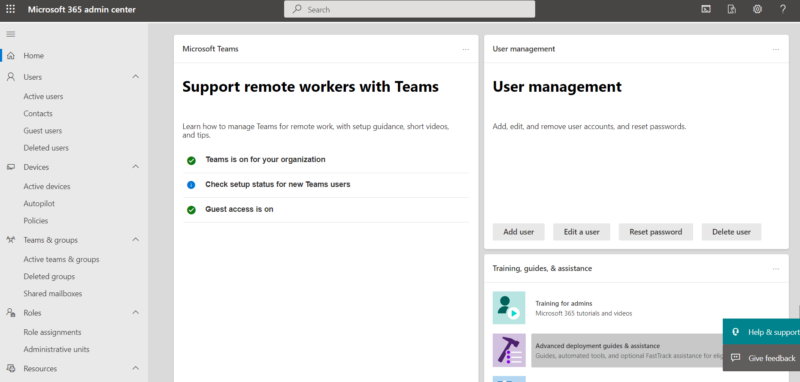
The M365 Admin Center
Quick Tips to make the most of Admin Center:
- If you’re adding departmental users, you can create templates that are specific to that department, for example, if you have student or summer interns you can use a template to ensure they all have the same credentials versus creating them one by one
- Multi-Factor Authentication should be turned on for all global admin users. This is critical for maintaining security for your organization. You can apply Global Read access which provides the ability to see how things are set up without allowing changes.
- A good way to review and clean up your licensing is by exporting the list of users to Excel.
- You can create teams and groups and add users to them, as well as shared mailboxes that a group can respond to in the event someone is on vacation, you maintain a 24×7 operation such as info@, accounting@ which don’t need licenses or credentials.
- You can set up Rooms & Equipment as users, enabling you to set up rooms or equipment as an email, allowing you to reserve rooms for meetings, reserve company cars or other pieces of equipment.
- The billing section allows you to see what licenses your organization owns and whether you bought through a partner or direct from Microsoft.
- You can create able to create and/or view service requests and follow up with them.
- Your domain settings should be viewed on a regular basis. Make sure they are always checked (green) and marked at Healthy
- Make sure your data is residing in the location you want it to reside in. If the location it’s currently set to is a concern for your organization, change it or contact Point Alliance for help.
- Review your business partner relationships. If a partner has global administrator access that means they can administer your tenant on your behalf.
- Monitor the health of your tenant. If something does not work and multiple people are reporting the same issue, check the health section. You’re able to create a customized email that reports incidents with applications. These notifications will appear in your Teams channel and can advise your staff of any issues/incidents that are occurring thus minimizing the impact on your support team
And finally, if you want to see how the mobile admin client works, please watch the video. John Zarei demos the mobile client around 28 minutes in on the video.